> For the complete documentation index, see [llms.txt](https://docs.livecaller.io/livecaller/llms.txt). Markdown versions of documentation pages are available by appending `.md` to page URLs; this page is available as [Markdown](https://docs.livecaller.io/livecaller/services/online-chat/chat-integration.md).
# Chat Integration
This document helps you easily add the LiveCaller widget to your website.
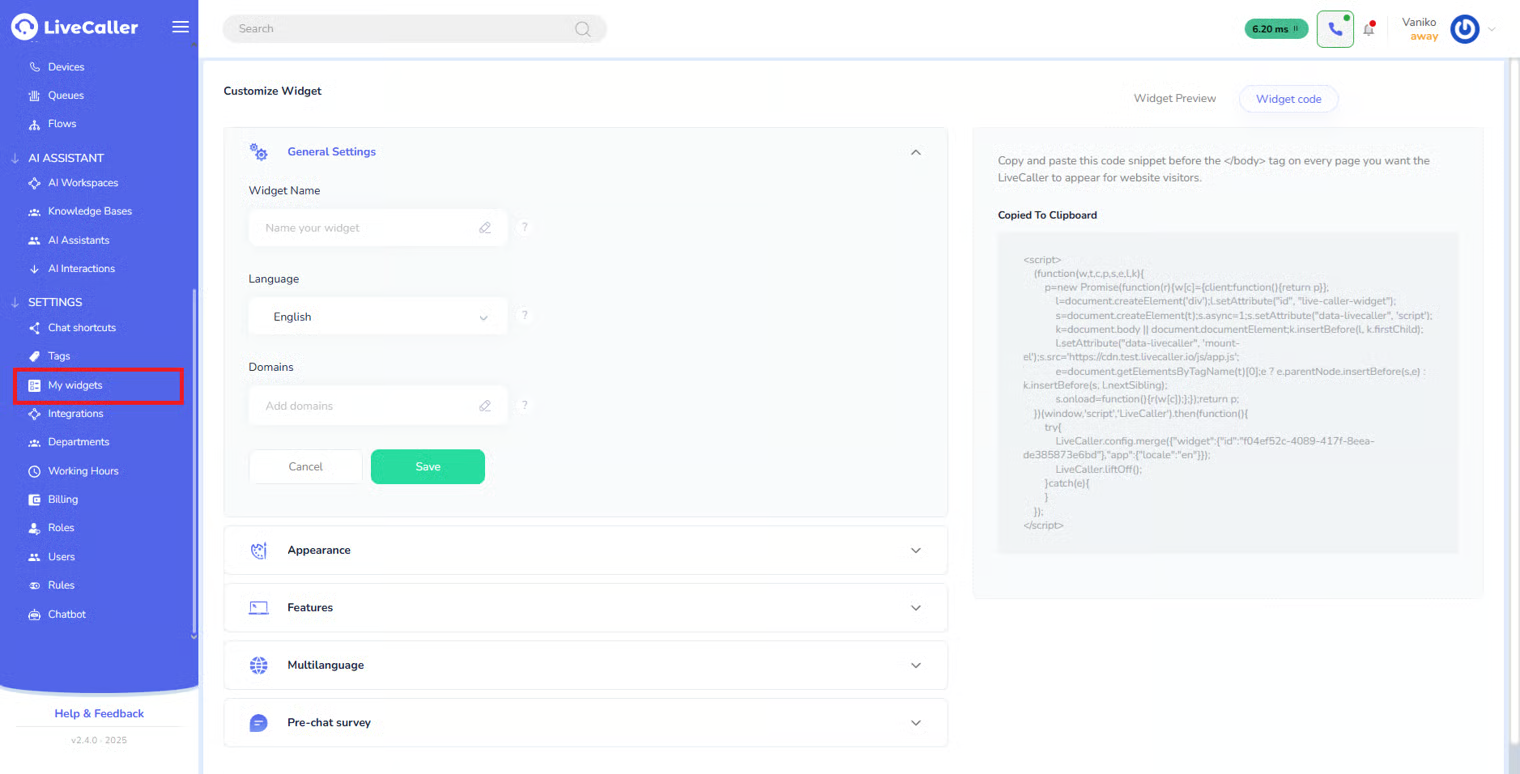
First, log in to the LiveCaller administration panel. In the sidebar on the left, scroll all the way down until **My Widgets** appears. Once there, you can view existing widgets or create a new one.
To create a new widget, you need to:
* Assign a name to the widget (e.g., “Support Main Site”) – this helps you easily identify which site it is for.
* Specify the site/domain (Link) where the widget should operate.
Then, go to the configuration page, where you:
* Select the functionality (Live Chat / Voice Call)
* Set the visual appearance (color, position, etc.)
* Optionally configure a **Pre-Chat Survey** to collect user information
Finally, click the **Save** button.
***
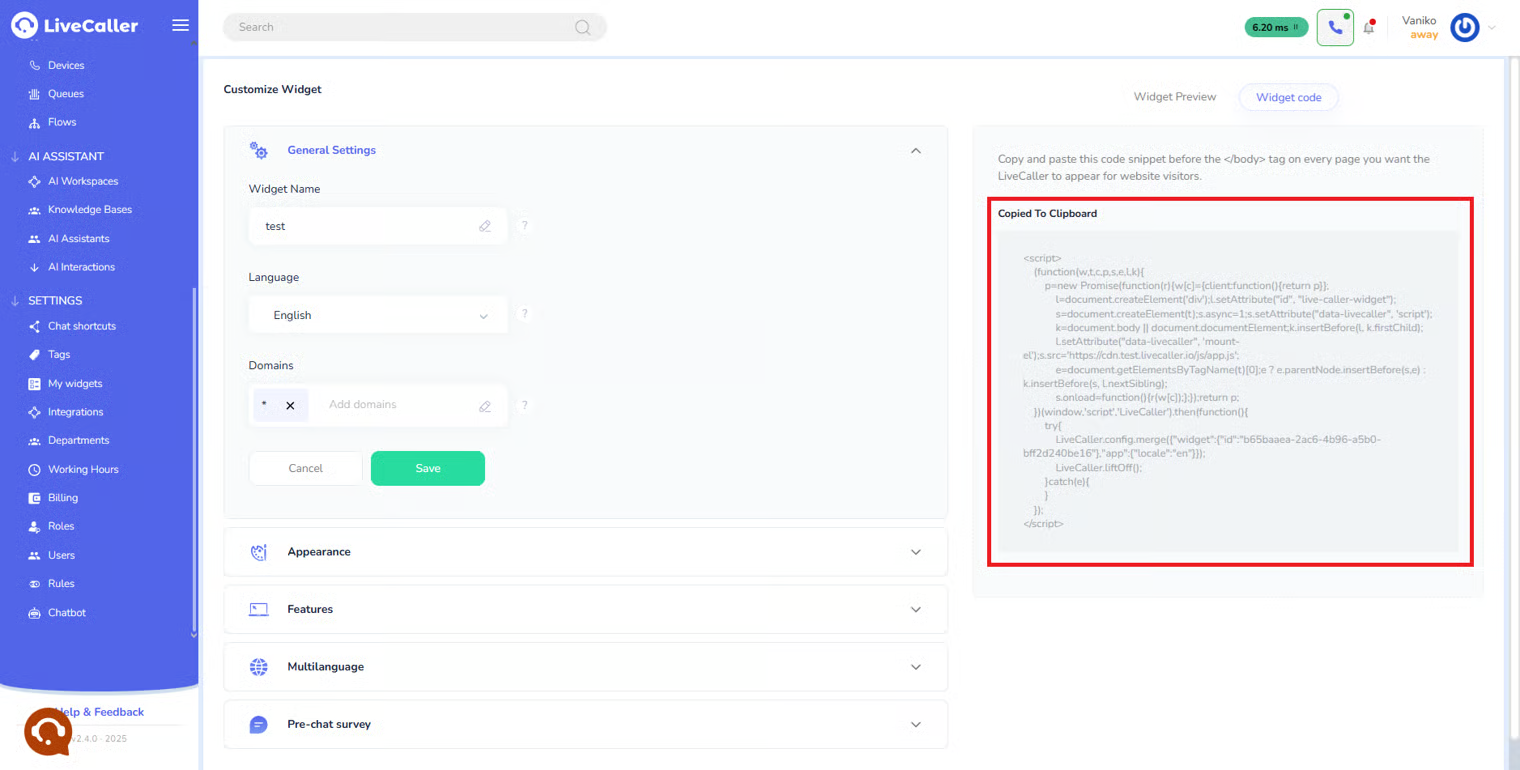
LiveCaller provides you with a special script that needs to be placed on your website. This code is generated directly on the widget page.
***
#### How to add a widget to a website?
The script must be placed on every page where the widget should appear. It is recommended to insert the code just before the `` tag to avoid interfering with page loading.